Under Construction Last Update 27.10.25
This section is currently being developed and may be incomplete/outdated.
Waveshift Hardware Setup Guide
This guide walks you through unboxing, assembling, and cabling the Waveshift hardware components, and verifying basic network connectivity.
Prerequisites
Before you begin, ensure you have:
- ✅ Waveshift Hardware Package
- ✅ Internet Connection
- ✅ Waveshift Credentials (provided by Blackfire Technology)
Hardware Components
The Waveshift hardware package includes the following components:
| Component | Model/Part No. | Qty | Notes | In Box? |
|---|---|---|---|---|
| Control Hub | GL.iNet Brume 2 | 1 | Flashed with Waveshift firmware | Yes |
| Node | GL.iNet Slate AX | 5 | Flashed with Waveshift firmware | Yes |
| Network Switch | Unmanaged 8+ port | 1 | UniFi Switch | Yes |
Network Topology
The Waveshift network follows this basic topology:
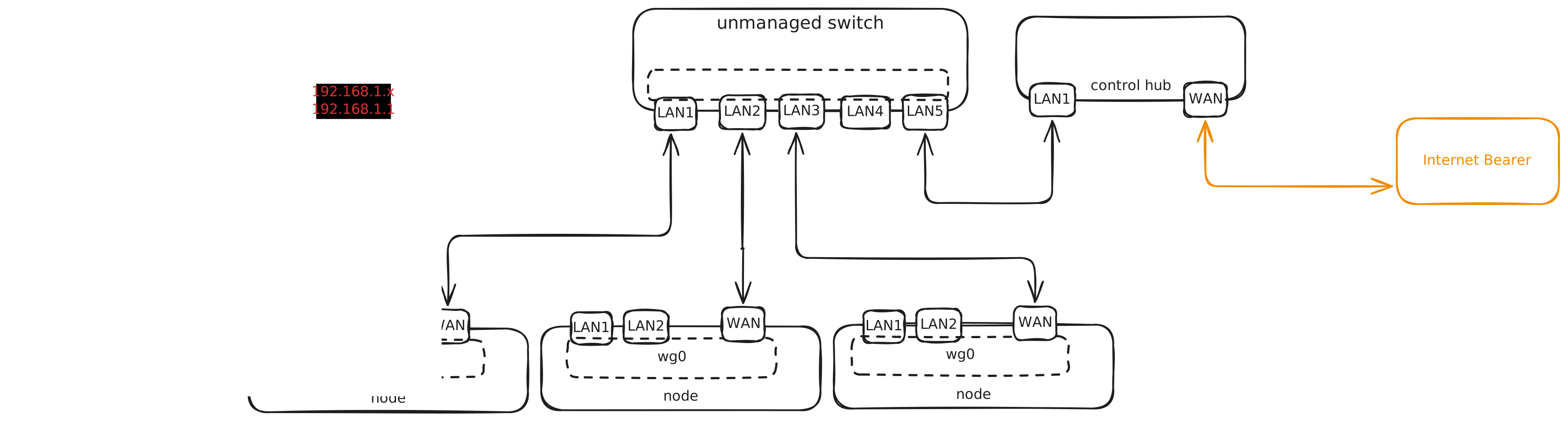
Key Connections:
- Internet Bearer Router → Provides internet access to all components
- Control Hub → Connects to Bearer (WAN) and provides LAN for management and internet access to nodes connected to it
- Nodes:
- WAN to Control Hub (for internet data and management), when not connected to the control hub. WAN can be used to connect to any bearer for connectivity after initial setup via control hub.
- LAN 1 and 2 to user devices
- Switch
Assembly Steps
Step 1: Configure Internet Bearer Router
Do This First
The Internet Bearer Router must be configured before connecting other components.
1.1 Power On Bearer Router
- Connect power to the GL.iNet Beryl router
- Wait approximately 4 minutes for full boot
1.2 Connect to Bearer Router
- Connect your laptop via Wi-Fi or Ethernet to the Bearer
- Default IP:
192.168.8.1 - Default admin panel:
http://192.168.8.1
1.3 Configure Internet Access
- Access the GL.iNet admin interface
- Configure WAN connection
- Verify internet connectivity
- Important: Note the Bearer's LAN IP range (default: 192.168.8.x)
1.4 Verify Connectivity
Step 2: Power On Control Hub
Power Sequence Matters
Power on components in this specific order.
2.1 Connect Power
- Connect GL.iNet Brume 2 power adapter to Control Hub
- Wait approximately 1 minute for boot
2.2 Connect to Internet
- Connect Control Hub WAN port to Bearer Router LAN port
- Control Hub will obtain IP from Bearer (e.g., 192.168.8.x)
Step 3: Configure Nodes
For Each Node:
3 Connect Node to Control Hub (Management)
- Connect Ethernet cable from Node WAN port to Control Hub LAN port (Via Switch)
- This provides management connectivity and internet to the nodes
3.3 Power On Node
- Wait approximately 1 minute for boot
- Node LEDs should indicate successful boot
3.4 Verify Node Registration
- On UI, navigate to
http://console.waveshift.internal - Login with default credentials
- Go to Nodes page
- Confirm node appears in Unassigned Nodes list
Verify System is Online
Access Waveshift Console
From UI Tablet/Laptop:
- Open browser and navigate to:
http://console.waveshift.internal - Login with default credentials:
- Username:
admin - Password:
admin123
Confirm Nodes are Online
- In Waveshift console, click Nodes in left sidebar
- Navigate to Unassigned Nodes tab
- Verify all nodes appear in the list
Node Identification:
- Each node displays last 6 digits of its MAC address
- MAC address is printed on physical label on back of device
- Example: Node with MAC XX:XX:XX:12:34:56 shows as node-123456
Node Labeling
Consider adding physical labels to nodes (e.g., "Node-123456") for easy identification.
Test Node Connectivity
From Waveshift console:
- Select any unassigned node
- Note the node's status indicator (should show as Online)
- Green status = node successfully connected to Control Plane
IP Address Reference
Default IP Ranges
| Component | IP Address/Range | Purpose |
|---|---|---|
| Internet Bearer | 192.168.8.1 | Router admin & DHCP for WAN connections |
| Control Hub Admin | 10.34.site.1 | Waveshift console access |
| Control Hub DHCP | 10.34.site.x | Assigns to tablet and node management |
| Node DHCP | 10.34.200.x | Assigns to devices connected on LAN1 |
Waveshift Internal Network
Best Practices
Cable Management
- Label cables - Use colored tape or labels for WAN vs LAN
- Cable ties - Bundle cables to keep installation tidy
- Leave slack - Allow some extra cable length for adjustments
Physical Security
- Secure power cables - Prevent accidental disconnection
- Lock cabinet - If using rack/cabinet, lock it
- Temperature - Ensure adequate ventilation, avoid heat sources
Documentation
- Photograph setup - Take pictures of final configuration
- Label nodes - Write last 6 MAC digits on physical label
- Record IPs - Note any static IPs or custom configurations
Next Steps
Now that your hardware is set up:
- Create Your First PoP
- Configure egress location
- Enable features (Nodes, Kasm, Cloudflare)
-
Generate WireGuard configs
- Create additional users
- Assign roles and permissions
-
Manage organisation
- Connect devices to nodes
- Access Kasm workspaces
- Monitor PoP status
Support
If you encounter issues during setup:
- Email: support@blackfire.tech
- Documentation: Common Issues & Troubleshooting
- FAQ: Frequently Asked Questions